Loading video…
All breakouts
29.4Text-HeavyHow-To hookAI Tools
Hook
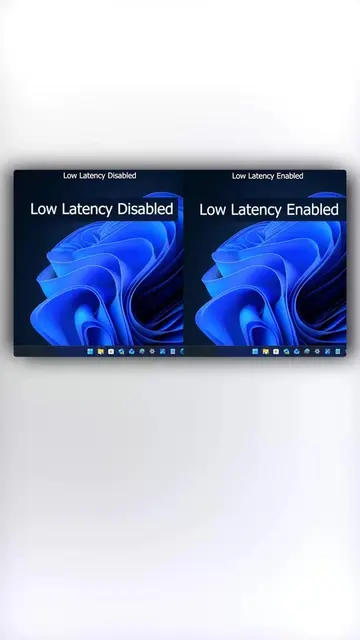
Here's how to help reduce system lag and improve performance from this to this.
@techow
397.8K followers · usually 45.2K views a post
Views
1.2M
Likes
64.2K
Comments
971
Shares
5.2K
Why it worked
The video provides high-utility, actionable technical advice that solves a common user pain point (PC lag) using a clear, step-by-step visual format.
Summary
This video provides a technical tutorial on how to modify Windows Registry settings to potentially improve system performance. It includes a reference chart for users to adjust specific values based on their computer's RAM capacity.
Structure
- 1Identify the problem of system lag
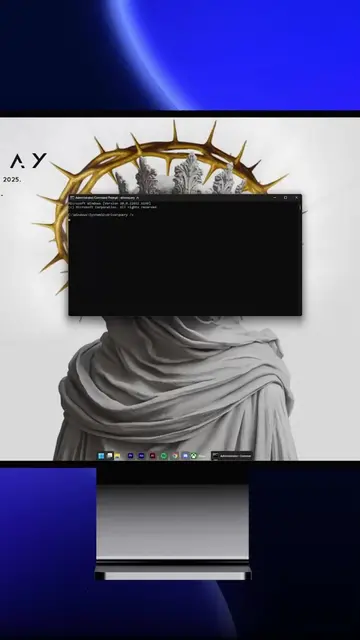
- 2Open the Windows Registry Editor
- 3Navigate to the specific control folder
- 4Locate and edit the host threshold value
- 5Reference the provided RAM value chart
- 6Restart the computer to apply changes
On-screen text
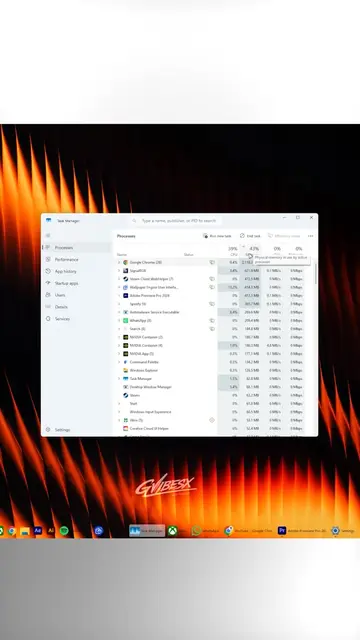
Utilization 23% Speed 1.74 GHz Processes 248 Threads 5064 Handles 125010 Up time 0:00:30:29
Utilization 28% Speed 1.74 GHz Processes 248 Threads 5060 Handles 125007 Up time 0:00:30:30
Utilization 30% Speed 1.74 GHz Processes 248 Threads 5059 Handles 125002 Up time 0:00:30:31
Utilization 21% Processes 248 Threads 5060 Handles 125003 Up time 0:00:30:32
60 seconds Utilization 12% Speed 1.74 GHz Processes 180 Threads 3045 Handles 82700 Up time 0:02:37:12
Windows + R
regedit
Registry Editor
Computer
HKEY_CLASSES_ROOT
HKEY_CURRENT_USER
HKEY_LOCAL_MACHINE
HKEY_USERS
HKEY_CURRENT_CONFIG
SYSTEM
CurrentControlSet
Control
SvcHostSplitThresholdInKB
Edit DWORD (32-bit) Value
Value data: 380000
Value data: 2000000
RAM VALUE
(default) 380000
4 GB 400000
6 GB 600000
8 GB 800000
12 GB C00000
16 GB 1000000
24 GB 1800000
32 GB 2000000
64 GB 4000000
Restarting
60 seconds Utilization 12% Speed 1.74 GHz Processes 180 Threads 3045 Handles 82700 Up time 0:02:37:12
Utilization 18% Speed 1.74 GHz Processes 180 Threads 3048 Handles 82701 Up time 0:02:37:13
Utilization 19% Speed 1.74 GHz Processes 180 Threads 3051 Handles 82709 Up time 0:02:37:14
Original caption
Is Your Windows Pc feeling slow? Do This #pctips #windows11 #pc #techtok
More from @techow
More breakout videos from this creator.