Loading video…
All videos

Hook
THE BEST MICROSOFT COPILOT PROMPTS TO USE IN POWERPOINT
Posted Jul 6, 2026Photo post · 8 slidesby @ivee.jobss
Views
11.6K
Likes
249
Comments
0
Shares
69
Engagement
2.7%
of views
8xthis account’s usual viewsOutlier
This video11.6KUsual views1.0K
The product
The creator
Why it worked
The post offers practical, actionable prompts for a widely used tool (PowerPoint) enhanced by a popular AI (Copilot), directly addressing a common pain point for professionals: creating effective presentations efficiently. The clear, step-by-step format and the creator's own brand promotion make it highly shareable and valuable.
What happens
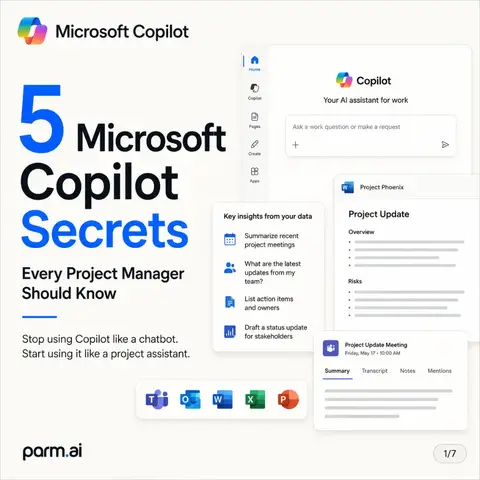
This slideshow provides five prompts for using Microsoft Copilot within PowerPoint to transform documents, condense slides, generate speaker notes, create executive summaries, and organize presentations. It also includes a tip to use a branded template for more personalized results.
The breakdown
Original caption
(Save and use these prompts later!) 1. The document transformer Use this prompt to turn an existing Word document or detailed report into a structured first draft. “Create a 10-slide presentation from [insert document link/name]. Structure the narrative for an executive audience, focusing specifically on the problem, the proposed solution, and the projected ROI.” 2. The slide reducer “Rewrite this slide to be more concise and easier to scan. Reduce the text to a maximum of 4 bullet points, keeping it under 10 words per bullet. Remove any technical jargon.” 3. The presenter notes Copilot is excellent at analysing the content of a slide and drafting natural-sounding talking points so you don’t end up just reading the screen. “Generate speaker notes for this slide. Include a 1-sentence opening hook, a simple explanation of the data shown, and a smooth transition into the next slide.” 4. The executive summariser If someone sends you a massive 50-slide deck that you don’t have time to read use this prompt to extract the bottom line. “Summarise this entire presentation into a single ‘Executive Summary’ slide at the front of the deck. Include the 3 main takeaways, the key risks, and 1 clear decision required from the audience.” 5. The narrative organiser “Organise this presentation into logical sections. Group related slides together, add clear section header slides, and create a matching agenda slide at the very beginning of the deck.” 💡 A quick tip for success: Always make sure your company’s branded PowerPoint template is open before you prompt Copilot to generate new slides. It will automatically adopt your brand’s fonts, colors, and layouts rather than defaulting to generic Microsoft designs! Follow us for more AI prompts and tips 🙌