Loading video…
All breakouts
8.7App DemoHow-To hookEducation
Hook
POWER BI CREATE THE BEST WORKSPACE EVER!!
@jennytumay
2.1K followers · usually 1.9K views a post
Views
14.0K
Likes
197
Comments
5
Shares
4
Why it worked
The video provides a clear, step-by-step tutorial on a specific feature within a popular business intelligence tool. The use of a custom, visually appealing icon and the demonstration of pinning for convenience add value for users. The creator's enthusiasm and direct approach make the content engaging.
Summary
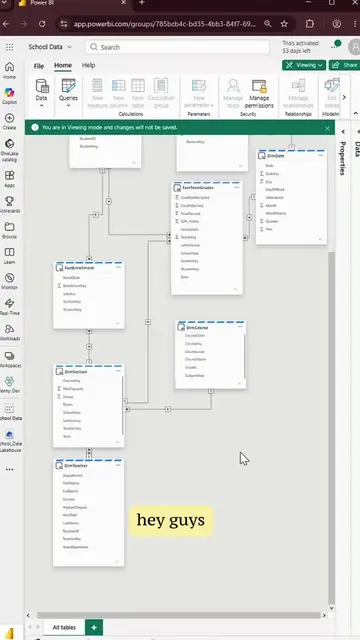
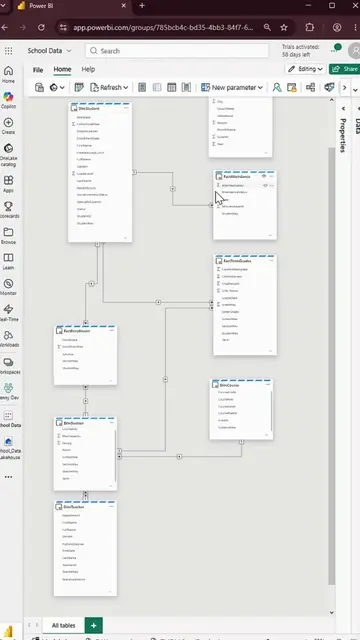
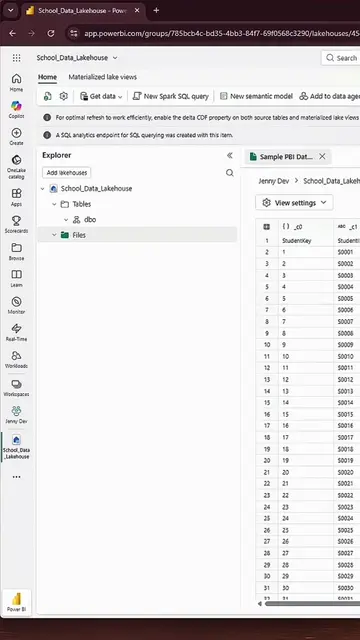
This video demonstrates how to create a new workspace in Power BI. It advises against using the default 'My Workspace' for shared content and guides the user through naming, describing, and adding a custom icon to a new workspace. The tutorial also covers pinning workspaces for easier access.
Structure
- 1Introduction: Don't use 'My Workspace' for shared content.
- 2Navigate to Workspaces and click 'New workspace'.
- 3Name and describe the new workspace.
Original caption
Take a shot everytime i say workspace. #powerbi #microsoftfabric #dataanalytics #powerbitips #howtopowerbi #dataanalyst #powerplatform ~ how to create your best power bi workspace ever ~
More from @jennytumay
More breakout videos from this creator.