Loading video…
Sound

original sound - dataanalytics.07
Ali Data Analytics · Original audio
0:00–:––
Playing this video’s own audio, so you’ll hear the creator over the sound.
The video provides a practical and time-saving solution to a common problem (attendance tracking) using a widely accessible tool (Excel). The contrast between 'hard work' and 'smart work' effectively highlights the value proposition of the demonstrated technique.
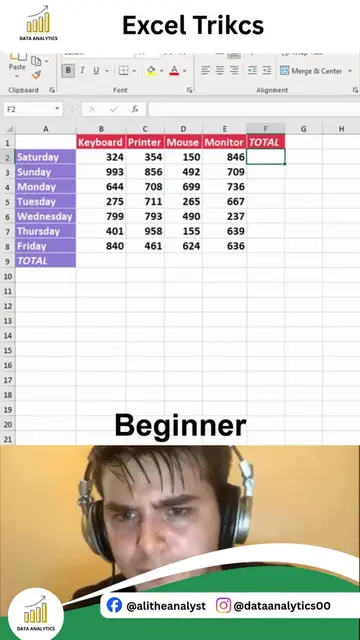
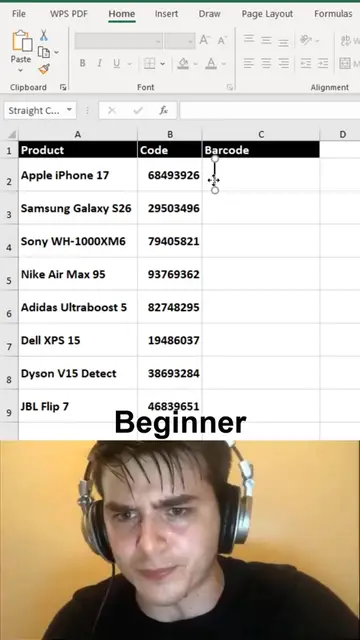
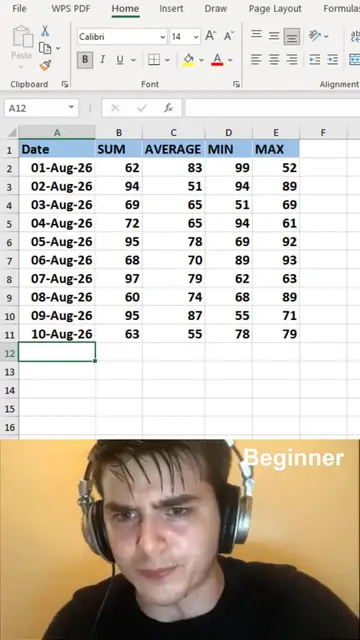
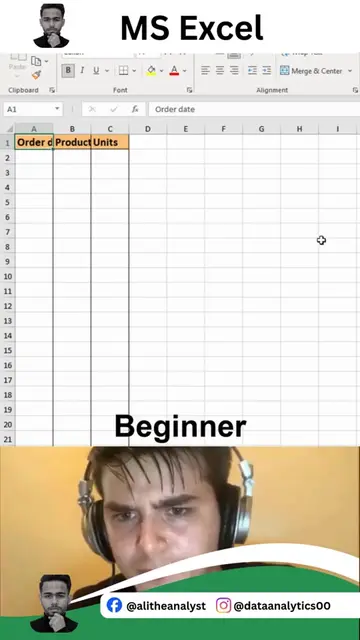
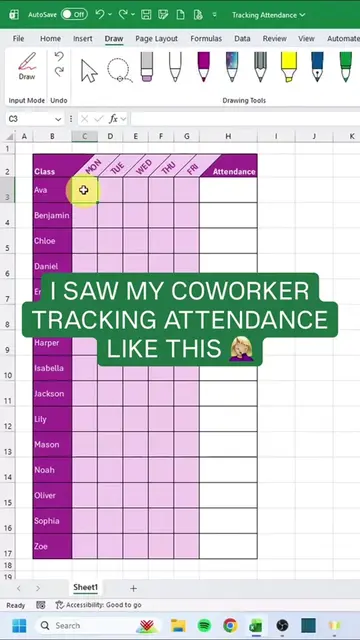
The video demonstrates how to create an interactive attendance tracker in Excel using checkboxes and the COUNTIF function. It shows the manual method of marking attendance and then presents a more efficient method using Excel's features to automate the process.
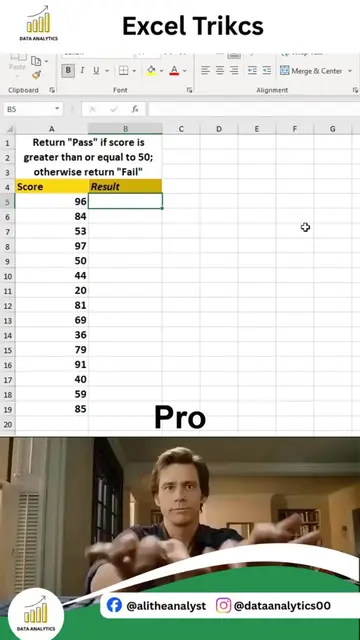
EXCEL ATTENDANCE TRACKER USING CHECKBOXES Still marking attendance manually? Create a professional Attendance Tracker in Excel using Checkboxes and Conditional Formatting to automate attendance management in seconds. What you'll learn: • Add interactive checkboxes in Excel • Track attendance with a single click • Apply Conditional Formatting automatically • Create a clean and professional attendance sheet • Monitor attendance records without manual calculations Why use this method? • Saves time • Easy to update daily • Reduces manual errors • Perfect for schools, offices, and training sessions • Creates a visually appealing tracker Use Cases: • Employee Attendance Tracking • Student Attendance Records • Training Programs • Project Task Tracking • Habit and Activity Trackers This simple Excel trick can transform a basic spreadsheet into an interactive attendance management system. Work smarter, automate repetitive tasks, and make your spreadsheets more professional. If you want to learn Excel from beginner to advanced level, including formulas, dashboards, Pivot Tables, Power Query, automation, and real-world projects, type "Interested" in the comments. For Excel, Power BI, SQL, Python, and Data Analytics Training: alidataanalytics.com #Excel
Excel Trikcs
Introduction to Excel attendance tracker
Manual attendance marking
Introduction of smart work method
Adding checkboxes
Using COUNTIF formula
Automated attendance count
Excel ACTS - it is used to create an attendance tracker. Removing it would change what happens in the video. Data Analytics (logo) APPEARS - a watermark in the top left and bottom left corners. Removing it would not change what happens in the video.
Playing this video’s own audio, so you’ll hear the creator over the sound.
Promotes 5 products. Create free account to see more.
Outliers and viral hits: their videos on Overshot, all time.
Learn and practice dozens of Excel functions and tools online for free - from beginners to pro level, without the need to download any files.
All time.